AR Drawing: Trace & Sketch
- 4.1
- Rating
- 100.00K
- Installs
- Free
- Price

 Analysis by App-foxy
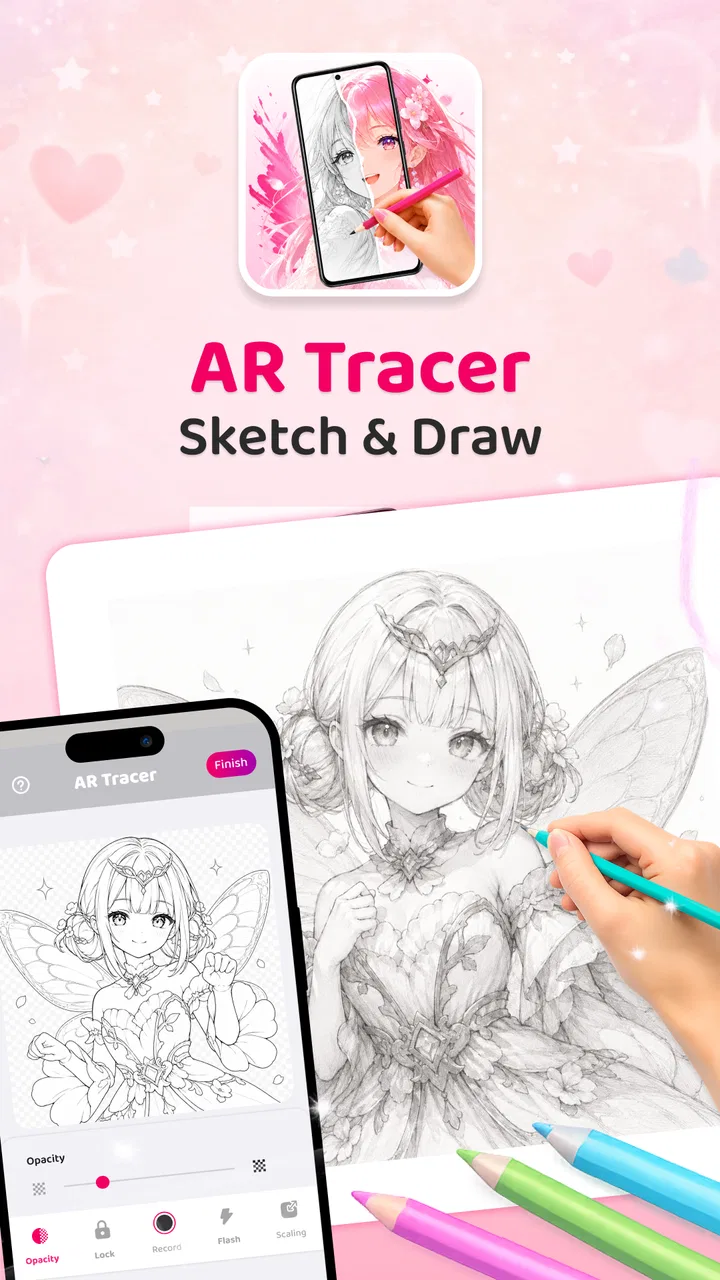
I approached AR Drawing: Trace & Sketch as a beginner-friendly drawing tool rather than a replacement for a full digital art studio. Its main idea is simple: use the phone camera and augmented reality to place a reference image over a real surface, then follow the visible lines with a pencil or pen. That makes it interesting for people who find a blank page intimidating, especially when they want guidance without committing to a complicated illustration program.
The app sits in the Art & Design category and is made by TOMODEV JSC. It is free to install, rated for Everyone, and available for devices running Android 8.0 or later. The current version is 0.2.3, and the listing shows a 4.1 average from around 447 ratings, with more than 100K installs. Those figures suggest a modest but active audience rather than a long-established drawing platform. In my experience, that is the right expectation: this is a focused tracing aid, not an enormous creative ecosystem.
How clearly the drawing process is presented
The strongest part of the concept is that it turns drawing into a sequence I can understand immediately. I choose a reference, point the camera at the surface, adjust the projected image, and trace what I see. That is much less abstract than opening a blank canvas and wondering where to begin. For a child, a nervous beginner, or someone returning to drawing after a long break, the visual relationship between the reference and the paper is easy to grasp.
You May Also Like

 Blood Strike: 2.5 Anniversary
Blood Strike’s Loadouts Turn Every Drop Into a Tactical Gamble
A close look at Blood Strike’s custom loadouts: how fast access to signature weapons reshapes its battle royale rhythm, rewards preparation, and narrows the gap between fights.

 Pandora - Music & Podcasts
Pandora’s Music Is Easy to Start, but Harder to Recover
Pandora’s strength is its low-effort path from a seed to a station. Its weak spot is how much confidence it asks you to place in connection, setup, and quiet recovery.

 8 Ball Pool
 Is Built on Rivalries, Rematches, and Routine
A close look at the rivalries, rematches, shared routines, and unanswered safety questions that turn a quick pool match into a persistent mobile community.

 Samsung Music
’s Quiet Strength Is Playing What You Already Own
Its reach comes less from spectacle than from dependable access to a personal library. That simplicity is both the app’s strongest retention engine and its ceiling.

 AccuWeather: Weather Radar
AccuWeather Review: A Quick, Clear Forecast for Everyday Decisions
For everyday plans, the best forecast is the one you can understand quickly. AccuWeather makes rain timing, radar, and local conditions easy to act on, with a few trade-offs.

 Hill Climb Racing
Why Hill Climb Racing Still Turns Crashes Into One More Run
A tiny car, a bumpy hill and one more upgrade: Hill Climb Racing keeps resurfacing because its simple chaos makes every near-miss feel personal.
More From Our News Desk



The camera-based approach also changes how I think about scale. Instead of copying a small picture beside the page, I can use the projected guide to work at a more comfortable size. That matters when small details are difficult to see or when a user wants to draw on a larger sheet. The practical benefit is not artistic magic; it is reducing the number of decisions I have to make before the first line.
Navigation is most successful when I treat the app as a guided setup tool. I would use it in a quiet place, prepare the paper first, and make sure the phone has a stable view before tracing. This preparation is important because an AR overlay is only useful when the reference remains aligned with the surface. Moving the phone, bumping the table, or changing the viewing angle can make the process feel less predictable than ordinary copying.
That is also where the app differs from a standard sketching application. A conventional drawing app offers direct control over strokes, layers, undo functions, brushes, and canvas settings. AR Drawing: Trace & Sketch instead helps me transfer an image into the physical world. If my goal is polished digital artwork, I would choose a dedicated drawing app. If my goal is to learn the shape of a subject by physically following its outline, this approach is more approachable.
I found the concept especially useful for short activities. A parent can set up a simple drawing for a child, a teacher can demonstrate basic shapes, or I can spend a few minutes practicing proportions without building a complete digital project. The app’s appeal comes from lowering the entry barrier, not from offering every tool an experienced illustrator might expect.
Making the overlay easier to follow
One practical tip is to begin with bold, uncomplicated references. Thin lines, crowded details, and images with many overlapping shapes can become visually confusing when they are placed over a real page. A clean outline gives the eye a clear route and lets the hand concentrate on movement rather than constantly deciding which line belongs to which part of the picture.
I would also leave room around the drawing instead of filling the entire page. A little margin makes it easier to judge the projected edges and reposition the paper if necessary. This is a small workflow choice, but it can make the difference between a relaxed tracing session and one where the reference feels cramped.
The app is free, while in-app purchases are listed from $2.99 to $7.99 per item. That makes it easy to try the central idea before spending anything. I would recommend testing the basic workflow first, particularly if the person using it has limited patience for camera setup or prefers drawing without a phone nearby. The purchase model is worth considering as part of the decision, because a user who only needs occasional tracing may not receive enough value from optional extras to justify paying for them.
Motor, visual, and sensory considerations
The app can support different levels of drawing confidence because it separates seeing a shape from inventing it. I do not need to remember every proportion at once; I can follow a visible guide with my hand. For someone developing hand-eye coordination, that can provide a more concrete exercise than freehand drawing. It also allows the user to work slowly, pause, and focus on one section at a time.
At the same time, tracing is not automatically easy for every motor ability. The hand still has to control a pencil, and the phone must remain positioned so the overlay stays useful. A user with tremors, reduced grip strength, or difficulty maintaining a steady posture may find the setup tiring. I would place the phone on a stable support rather than expecting the user to hold it throughout the session. That simple adjustment reduces one source of movement and leaves more attention for the drawing itself.
For users with limited fine-motor control, I would choose large paper and simple references. Small pages encourage cramped wrist movements, while highly detailed images demand precision the app cannot provide on its own. The technology can guide a line, but it cannot compensate for every physical challenge involved in holding a tool and following a path.
Visual comfort is another important point. The projected reference needs to stand out from the paper and surrounding surface. A busy tabletop, poor lighting, glare, or a low-contrast image can make the overlay harder to interpret. I would use a plain, well-lit workspace and avoid placing the paper near reflective surfaces. These are not special app settings; they are environmental choices that directly affect how readable the experience feels.
People who are sensitive to moving camera views or augmented overlays may also prefer short sessions. The app’s central interaction depends on looking through the device at the real world, so it is different from staring at a fixed canvas. If that visual combination causes discomfort, ordinary paper-and-reference copying or a static digital canvas may be a better fit.
One useful technique is to divide the drawing into visual priorities. I would trace the outer silhouette first, then the largest internal shapes, and leave tiny details for the end. This gives the hand a stable structure to follow and makes it easier to stop with a recognizable result even if the final details are not perfect. It is a more forgiving workflow than trying to complete every visible line in one pass.
Why the app may help beginners without replacing instruction
The overlay can show where a line belongs, but it does not necessarily teach why that line has that shape. A beginner may produce a recognizable picture while still learning little about perspective, construction, shading, or anatomy. I see the app as a bridge into drawing, not a complete art course. It is useful for building confidence and practicing control, but users who want lasting drawing skills should eventually compare the traced result with freehand exercises.
That distinction matters for children and adults alike. A successful trace can be encouraging, especially for someone who believes they “cannot draw.” However, the next step should be to remove some guidance: trace a simple subject, observe it directly, then try drawing it from memory or with only a few reference marks. Used that way, the app becomes part of a learning routine rather than a permanent dependency on projected outlines.
Using it in real situations
A realistic everyday use case would be an evening craft session at a kitchen table. I would clear a small area, place a sheet of paper under the camera view, choose a simple reference, and let a child follow the major outlines. The activity would be more engaging than copying a tiny picture from a book, but it would still require an adult to help with positioning, lighting, and safe handling of the phone. The app makes the drawing accessible as an activity; it does not remove the need for a suitable setup.
It could also work well for handmade cards, classroom demonstrations, poster outlines, or practicing a familiar symbol before drawing it on a larger surface. Someone who enjoys crafts but struggles to start from an empty page may appreciate the immediate structure. I can imagine using it to plan the outline of a decorative design, then adding color and personal details after the guided stage.
For a shared activity, I would prepare several simple references in advance and keep each session focused on one image. Switching constantly between complex choices can make the experience feel more like managing a phone than drawing. A limited selection encourages the user to concentrate on line quality and hand movement.
Situational access depends heavily on the surroundings. The camera needs a usable view of the drawing surface, and the user needs enough room to place the phone and paper together. A crowded desk, dim room, moving vehicle, or unstable lap setup is unlikely to provide the same experience as a clear table. This makes the app less convenient than a normal sketchbook when I am traveling or drawing outdoors without a stable surface.
It is also not the best choice when I need speed. If I want to jot down an idea during a commute, a notes app or pocket sketchbook is more practical. If I want to edit a finished illustration, a digital drawing program is more capable. The AR method earns its place when the physical act of tracing is the point, not when I simply need a quick image or a sophisticated editing workflow.
Where it compares well with usual alternatives
Compared with copying from a printed reference, the AR approach can make scale and placement easier to judge. The reference is connected visually to the page instead of sitting separately beside it. Compared with freehand drawing, it offers more support at the beginning. Compared with a tablet drawing app, it keeps the pencil-on-paper feeling that many beginners find satisfying.
The trade-off is control. A traditional reference sheet does not require camera alignment, and a digital canvas usually offers more precise editing. A physical stencil may be faster for a single outline, while a drawing tutorial may teach more transferable skills. I would choose this app when I want guidance with a hands-on result, not simply the most efficient or technically advanced method.
Another non-obvious advantage is that it can make the size of the final drawing feel intentional. With ordinary copying, I may unconsciously shrink a subject because I am afraid of running out of space. A projected guide encourages me to decide the scale before tracing. That is helpful for posters and larger craft projects, although the user still needs to check the page boundaries before starting.
Remaining barriers and who should skip it
The biggest barrier is the dependence on a stable, readable camera setup. Users who want an instant, no-preparation drawing tool may become frustrated. The app’s promise is straightforward, but the physical arrangement around the phone matters as much as the software. I would not recommend it to someone who dislikes adjusting devices, working under controlled lighting, or keeping a reference aligned while drawing.
It may also be a poor fit for artists who already work comfortably from observation or who need layers, advanced brushes, detailed corrections, and export-focused workflows. The app is aimed at getting lines onto real paper with guidance. It is not where I would build a complex digital illustration or manage a professional art project.
For children, supervision and setup support may be necessary even though the content rating is Everyone. The age rating describes the suitability of the app’s content, not whether every child can independently manage a phone, camera placement, or a drawing tool. An adult can improve the experience by preparing the surface, selecting an appropriate reference, and checking that the child is comfortable with the visual overlay.
Users with visual processing difficulties may need to experiment with simpler images and stronger contrast. Users with motor limitations may need a stand, a larger workspace, thicker drawing tools, or assistance with the physical steps. I appreciate that the core idea can be adapted in these ways, but those adaptations come from the user’s environment rather than clearly built-in accessibility controls.
There is also a learning trade-off. If I trace everything without reflecting on the shapes, I may finish attractive outlines without improving my independent drawing ability. I would use the app in stages: guided tracing first, partial tracing next, and freehand practice afterward. That approach preserves the confidence-building benefit while avoiding total dependence on the overlay.
My inclusive verdict
After looking at the app through the lens of different abilities and situations, I see a useful, focused tool with a clear audience. It can make drawing feel less intimidating by placing a visible guide over a real surface, and it preserves the tactile satisfaction of using paper and a pencil. Beginners, families, craft enthusiasts, and anyone who wants help with proportions are the people most likely to enjoy it.
The most important strength is the reduction of the blank-page problem. I do not have to invent the first shape from nothing, and I can adjust the difficulty by choosing a simpler or more detailed reference. That makes the app approachable without pretending that tracing alone teaches every part of drawing.
My recommendation is more cautious for users who need highly customizable accessibility features, fast note-taking, advanced digital editing, or a completely hands-free experience. In those cases, a different tool may be better. For everyone else, the free entry point makes it reasonable to test the camera workflow before considering the optional purchases. The app is best understood as a supportive physical drawing aid: not a full art studio, not a substitute for practice, but a practical way to help more people begin.
Overall, I would recommend trying AR Drawing: Trace & Sketch with a stable phone position, a clear surface, good lighting, and a simple reference. Those four choices address most of the friction I encountered and make the central idea much more enjoyable. If that setup feels comfortable, the app can turn a hesitant first attempt into a finished drawing—and that is a worthwhile result for a free Art & Design app from TOMODEV JSC.
FAQs for AR Drawing: Trace & Sketch
01What is AR Drawing: Trace & Sketch and how does it work?
AR Drawing: Trace & Sketch is an innovative app that utilizes augmented reality technology to help users create precise sketches. By overlaying digital images onto real-world surfaces through your device's camera, it guides you in tracing an image, making it easy even for beginners to produce accurate drawings.
02Is AR Drawing: Trace & Sketch suitable for beginners?
Absolutely! AR Drawing: Trace & Sketch is designed with beginners in mind. The app provides step-by-step guidance and adjustable templates, making it simple for anyone to start drawing, regardless of their skill level. The intuitive interface ensures a smooth experience, helping novices improve their artistic skills.
03What devices are compatible with AR Drawing: Trace & Sketch?
The app is compatible with most modern Android and iOS devices that support augmented reality features. It requires a camera and a gyroscope to function properly. Ensure your device is updated to the latest OS version for optimal performance and compatibility with AR technology.
04Does AR Drawing: Trace & Sketch offer any in-app purchases?
Yes, AR Drawing: Trace & Sketch offers in-app purchases. These can include additional templates, advanced tools, and premium features to enhance your drawing experience. While the basic app is free, these optional purchases allow users to unlock more content and capabilities.
05Can I use AR Drawing: Trace & Sketch offline?
AR Drawing: Trace & Sketch primarily requires an internet connection to download templates and access certain features. However, once templates are downloaded, you can use them offline. Ensure you have a stable connection for the initial setup and to access any online content.
Pros
- Easy to use for beginners.
- Wide range of templates available.
- Enhances creativity and skills.
- Supports various art styles.
- User-friendly interface.
Cons
- Requires a stable surface for tracing.
- Limited offline functionality.
- Ads can be intrusive at times.
- Some features require in-app purchases.
- Occasional app crashes reported.

AR Drawing: Trace & Sketch
Gallery